

Audit Trails
The platform automatically records user actions: who did what, when, and from where. In Audit Trails, you can view these records, filter what matters, and, for changes, see the previous and new value of each field.
Changed in version 16.5: the screen, formerly called Audit Logs, was rebuilt. It now includes a source filter with multiple selections, object search, and details for each change. The trail also began recording changes made in the modules: a step in the data preparation workflow, an Analytics filter, an Account Reconciliation record, or a task.
Before you start
Nothing needs to be enabled: the platform records everything automatically. The screen is only used to view and export records.
Access to the screen is granted through the privacy profile and is typically reserved for administrators.
You only see records from folders you have access to. Records that do not belong to any folder, such as login, user registration, and password policy records, remain visible to everyone who has access to the screen.
Viewing the trail
Click the gear icon in the upper-right corner, then select Security → Audit Trails from the Admin Menu.
Adjust the filters. The period is prefilled with the last 7 days.
Click Search.
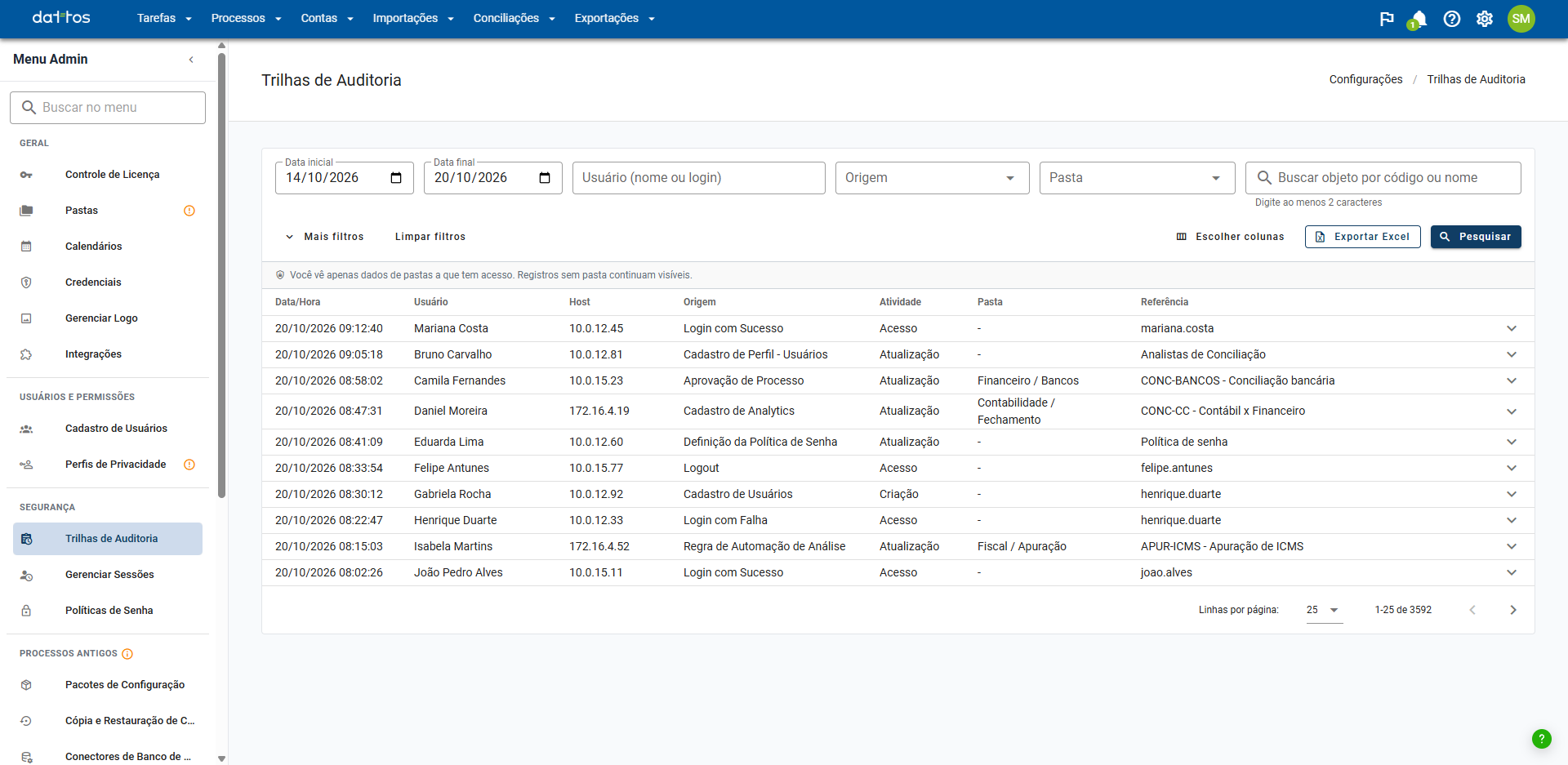
Filters
Start date and End date: the period covered by the records.
User (name or login): the person who performed the action.
Source: the subject of the record, such as Successful Login, ETL Registration, Analytics Registration, or Closing. You can select multiple sources at once, and each one becomes a removable tag.
Folder: limits the query to one folder.
Search object by code or name: finds everything that happened to a specific object, such as an analysis, without requiring you to know the folder. Enter at least 2 characters.
More filters contains two additional fields. The button shows how many of them are active, so you do not forget about an active filter:
Activity: Creation, Update, Deletion, or Access.
Reference: a term from the text that describes the object. E.g.:
Financial Reconciliation.
Use Clear filters to return to the default settings.
The results
The list displays Date/Time, User, Host (the source address), Source, Activity, Folder, and Reference. In Choose columns, you can hide the ones you do not need; only Date/Time is always visible.
The arrow at the end of each row opens Data changes. In Update records, it displays the Field, Previous value, and New value side by side, with field names translated into the platform's language. In other records, such as logins and deletions, it displays "No data changes recorded for this entry."
Sensitive data is not displayed: when the change involves an SQL query, a Dattos AI instruction, an API address, or a credential, the trail records only that the field was changed, without displaying its content.
What is recorded in the data preparation workflow
The data preparation workflow is recorded when you publish a version, along with its type and version number. Saving a draft does not generate a record, keeping the trail clean while the workflow is being built.
Export
Click Export to Excel to transfer the records you viewed to a spreadsheet.