

Process Dashboard
The Process Dashboard answers, on a single screen, how the period close is progressing: how many processes were executed, what stage of the approval workflow each one is in, how much has already been reconciled, and what still differs. From the list itself, you can approve or revert multiple processes at once.
Before you begin
Access to the screen is granted through the privacy profile. Without this access, the Process Dashboard item does not appear in the Processes menu.
The screen shows only the processes in folders you have access to.
Only processes that have already been executed during the period appear on the screen.
How to open
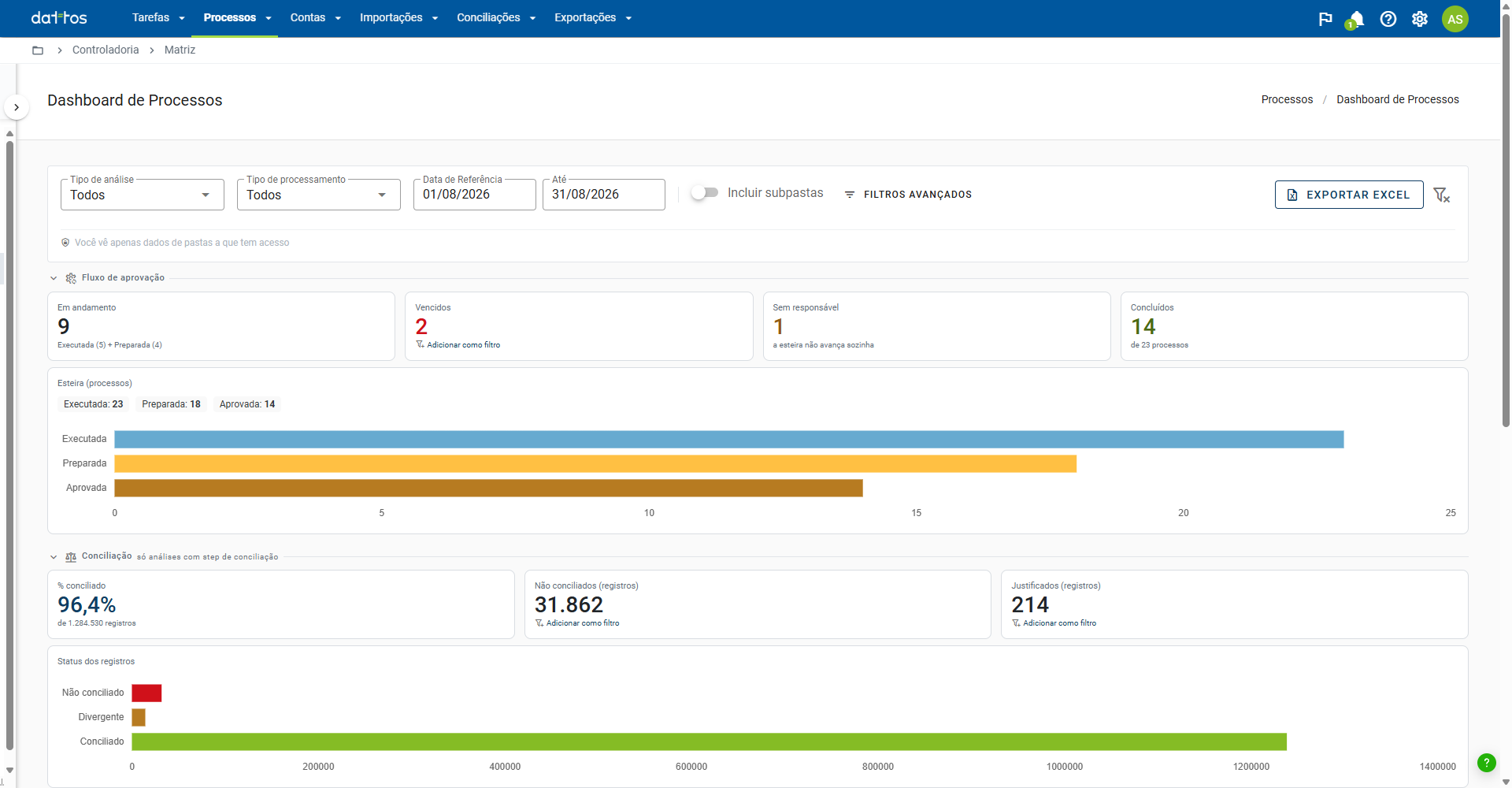
In the Processes menu, click Process Dashboard. From top to bottom, the screen is organized into filters, a metrics panel, and a process table.
Filters
The filter bar includes Analysis type, Processing type, the period (Reference Date and Through), and the Include subfolders toggle.
Period: when opened, the screen displays the entire previous month, which is the closing period. The period can be up to 92 days.
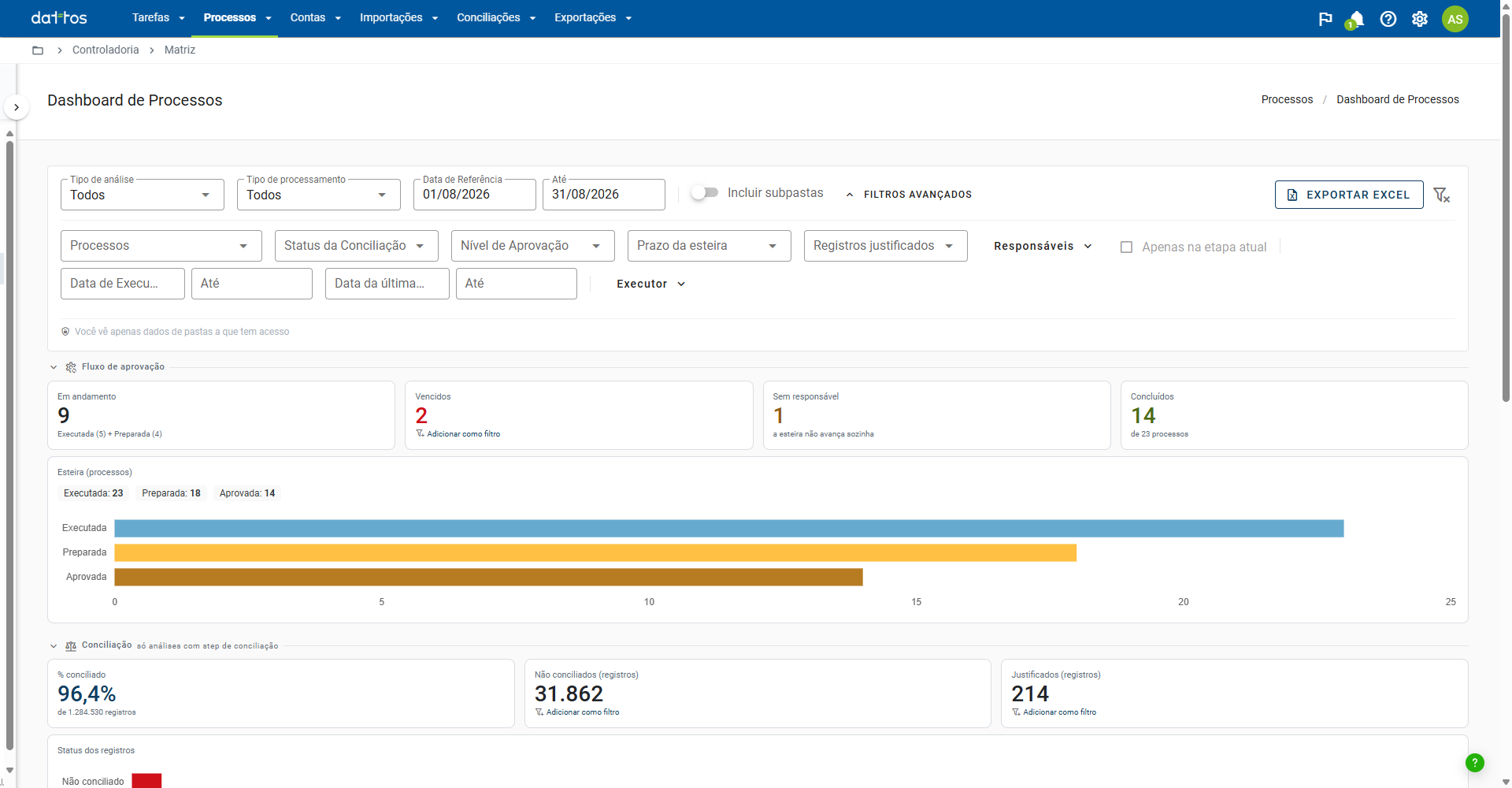
Advanced filters: the button opens additional criteria, such as specific processes, reconciliation status, approval level, workflow deadline, justified records, assignees, execution date, date of last approval, and executor.
Remembered filter selection: filters are saved by folder in your browser. When you return to the same folder, you will find the selection you were using. To restore the default, use the clear filters icon.
Metrics panel
The panel has two sections, which can be collapsed.
Approval workflow shows how many processes are In progress, Overdue, Unassigned, and Completed, along with a chart showing how many processes are at each workflow level.
Reconciliation shows the % reconciled, Unreconciled and Justified records, along with a chart showing the status of the records. This section considers only processes that have a reconciliation step.
Numbers marked Add as filter become a table filter: click them to see only those processes.
Unassigned blocks the workflow: the workflow does not move forward automatically. A process without an assignee at the current level remains stopped without notice, so this number deserves attention during closing.
Process table
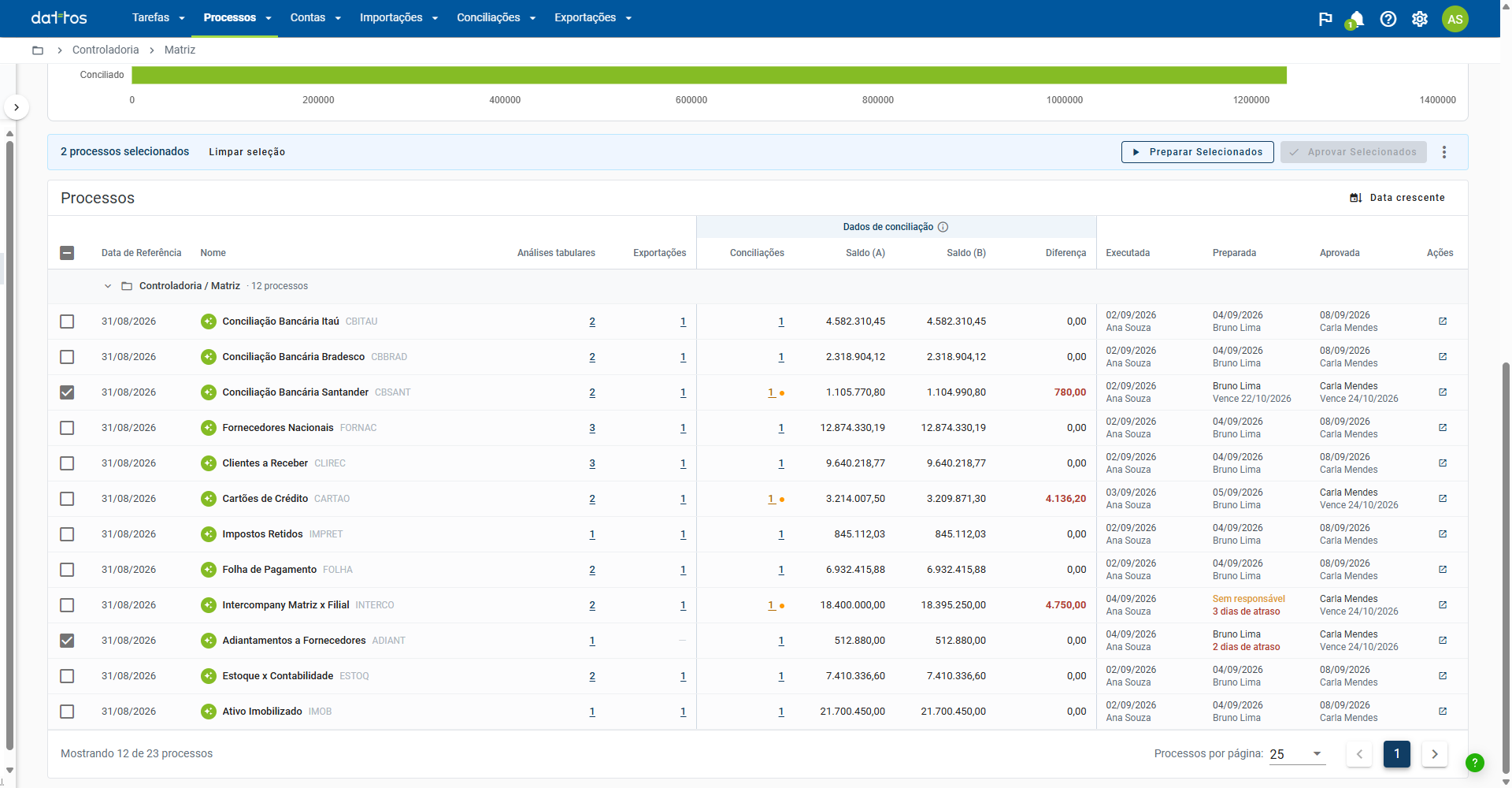
Processes are grouped by folder. For each process, the table shows:
the reference date, name, and code;
the number of tabular analyses, exports, and reconciliations it has;
the balances for sides A and B and the difference, shown in red when there is a discrepancy;
one column for each workflow level, with the date and assignee, or what is missing: Unassigned, days overdue, or the due date.
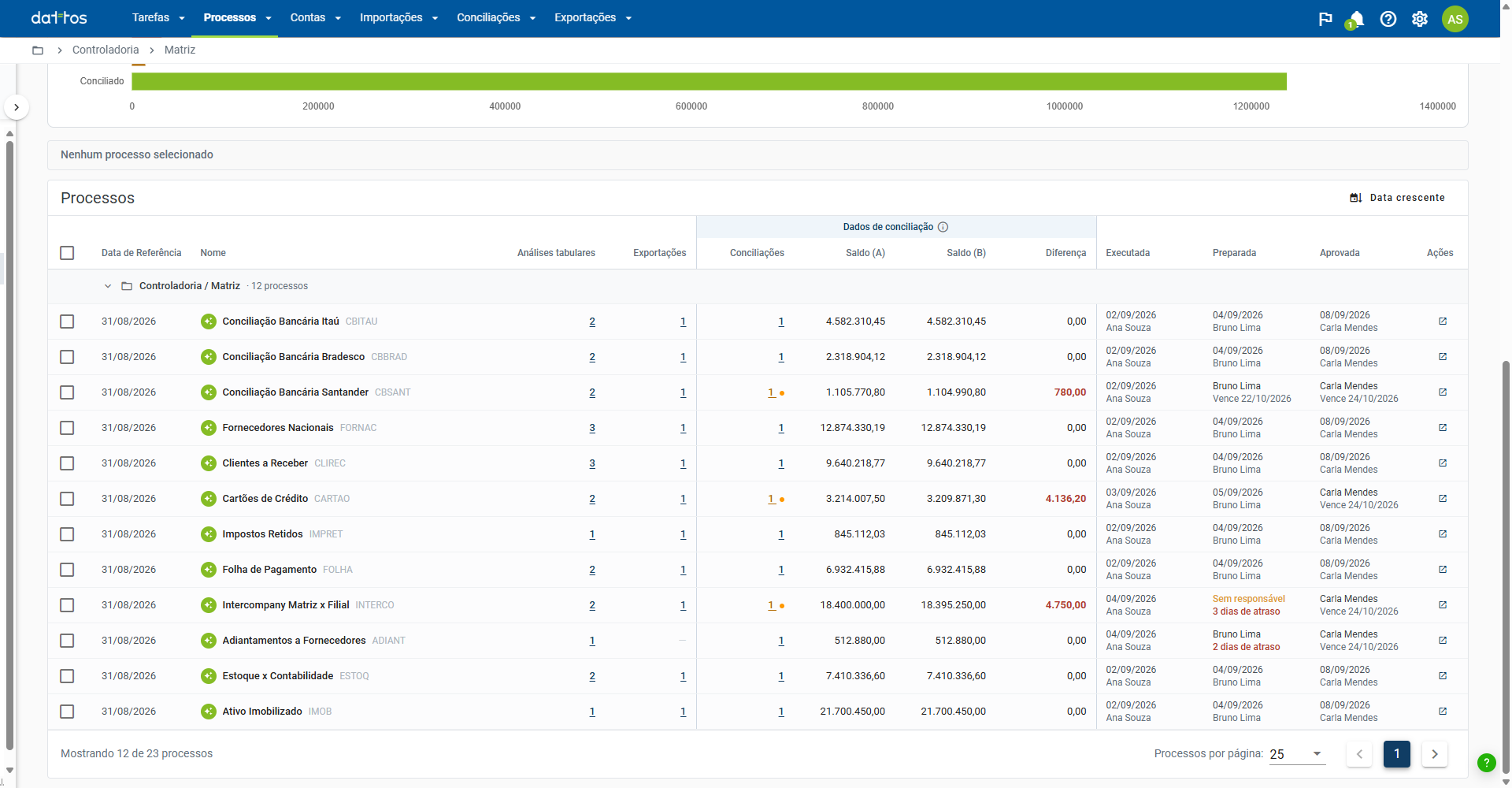
Balances from a single reconciliation: when a process has more than one reconciliation, the balances and difference come from one of them, not from the sum of all of them. The column's information icon indicates which reconciliation is being displayed.
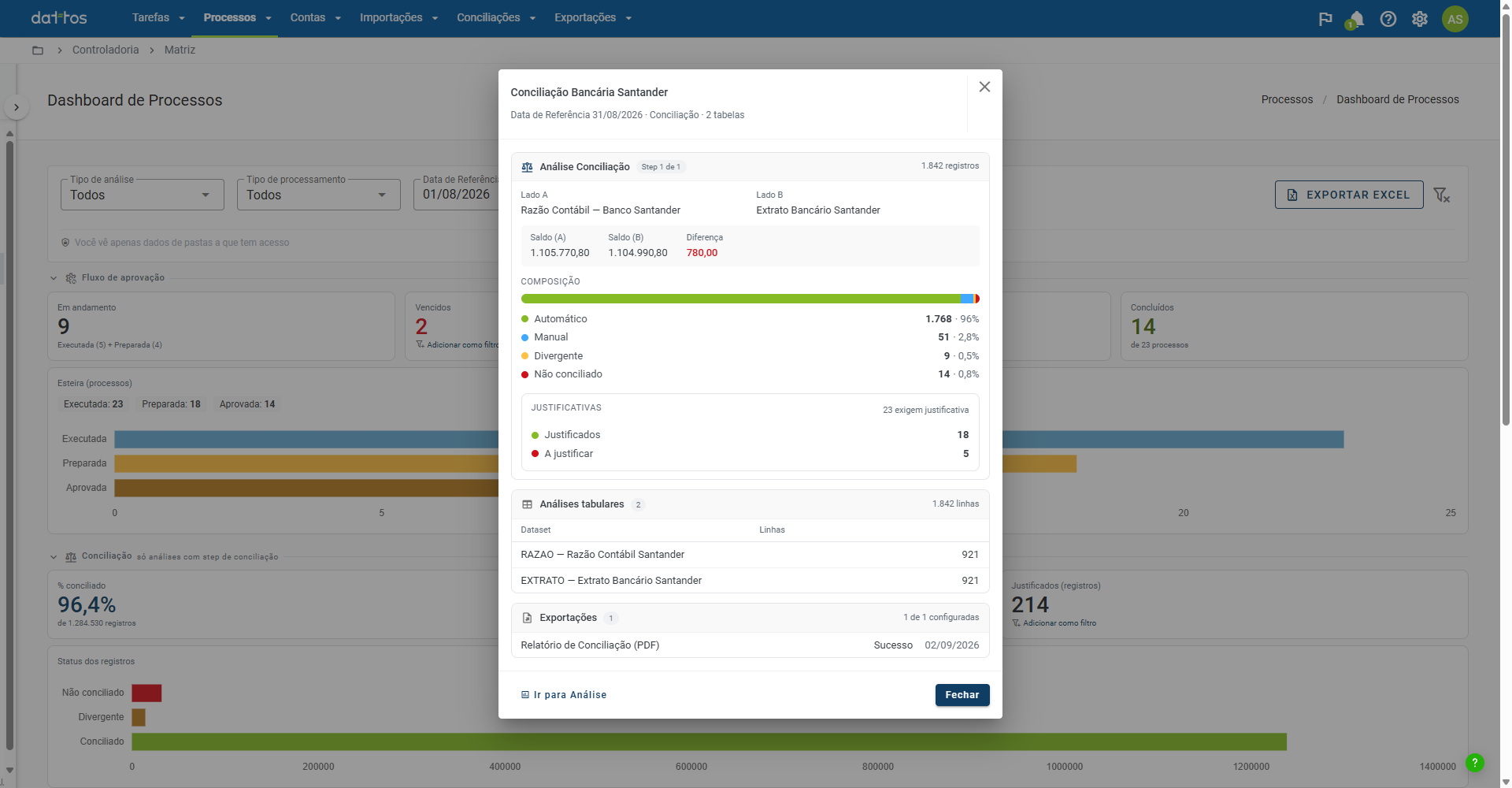
Click any number in the row to open the process details. It shows the reconciliation breakdown (automatic, manual, discrepant, and unreconciled), the records to justify and those already justified, the tabular analyses, and the status of each export. When there is more than one reconciliation, use the arrows to navigate between them. The Go to Analysis shortcut opens the process result.
Approve or revert in bulk
Select the processes in the table. The bulk action bar appears with the number selected.
Choose the action. The buttons are named after the workflow levels in your environment, such as Prepare Selected and Approve Selected. To undo an approval, use the three-dot menu.
Review the preview: it lists the processes that will receive the action and how many will be skipped.
Confirm. The result indicates how many processes advanced, how many were skipped, and the reason for each one.
An action is disabled when none of the selected processes can receive it—for example, approving processes that have not yet been prepared.
Export
The Export to Excel button, to the right of the filter bar, exports the table with the applied filter selection.