

Usage License Management
License Management brings together, on a single screen, everything your organization has contracted on the platform and how much has already been consumed. This is where you monitor the license validity, the number of lines processed during the month, and the usage of each resource, with the clarity needed to manage the contract.
Before you begin
Access is usually restricted to administrators. The screen is informational: it is used to check consumption and validity. The only available action is to update the license data immediately, and the button for this only appears for users with write permission on the screen.
Accessing License Management
Click the gear icon in the upper-right corner, then in the Admin Menu select General → License Management. The screen opens with the title Usage License Management.
What the screen shows
At the top, you will find the customer code and name, as well as the License Validity (the period during which the organization may use the platform according to the contract). Below, the screen counts the consumption of each resource in the format "current usage / contracted limit", with a progress bar. When the contract does not limit the resource, the limit appears as Unlimited.
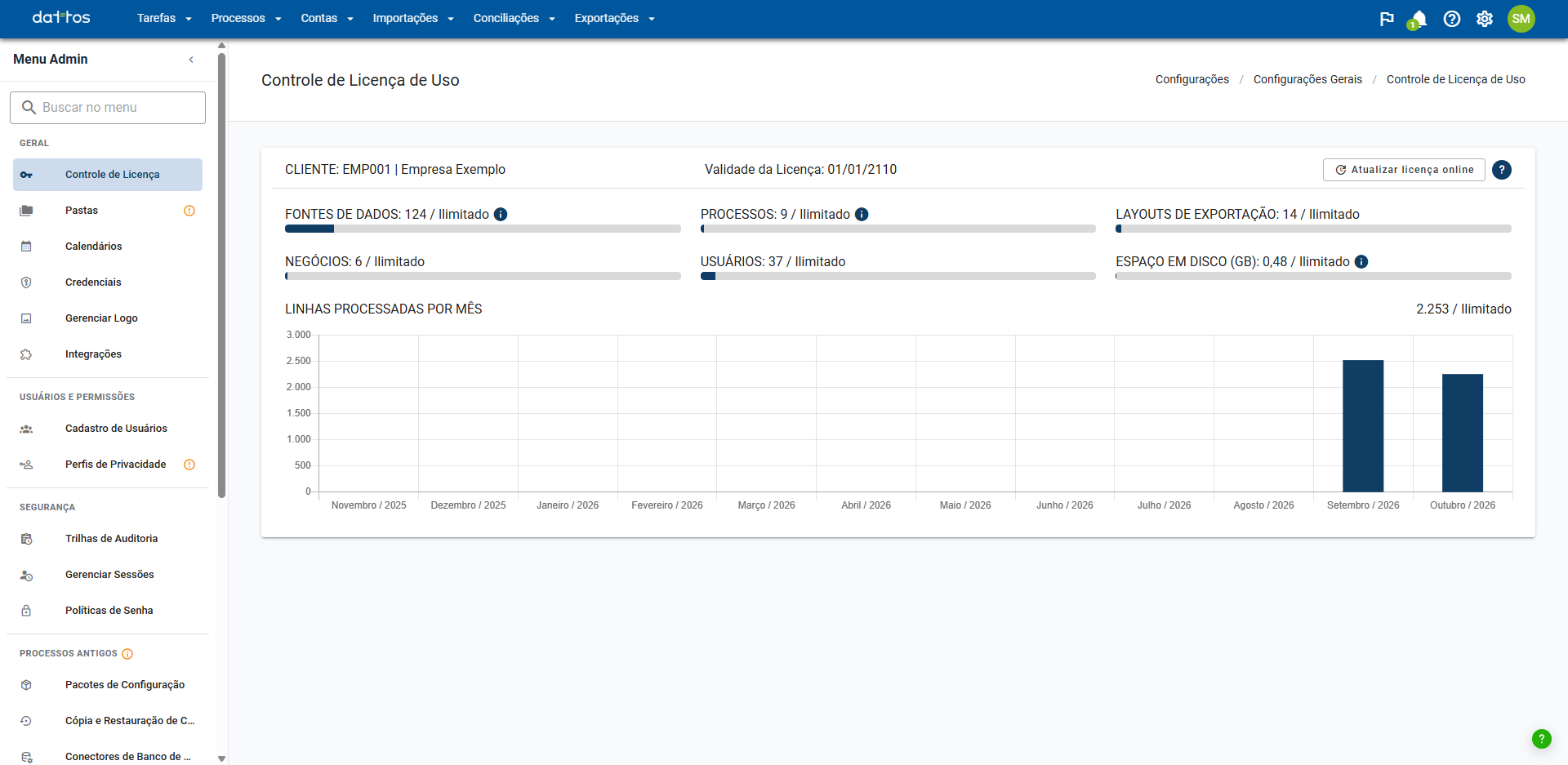
The resources counted are:
Data sources: where the information is extracted from (CSV, Excel, API, among others). Sources used in Data Preparation processes, account sources (layouts for the "Chart of Accounts", "Trial Balance", "Mass Support", and "Responsible Party Registration" packages), and other sources (layouts used in data reconciliation) are counted separately.
Processes: activities that transform inputs into results. This counts Reconciliation Maps (with matching rules) and the other Data Preparation processes that use a Reconciliation component.
Export layouts: export configurations registered in Configuration Packages.
Businesses: business divisions used to separate charts of accounts (for example, wholesale and retail).
Users: the number of users registered on the platform.
Disk space (GB): the space occupied by the data, including the database and files.
Lines processed per month: the total number of lines imported from external sources (Excel, TXT, CSV, XML, OFX, API, database, and PDF) during the current month.
In Data sources, Processes, and Disk space (GB), hover over the information icon to see where the number comes from. Below the counters, a chart shows the lines processed in each of the last 12 months. The number next to the chart title is always for the current month, so it starts near zero at the beginning of the month.
The Update license online button synchronizes the license data when clicked. It is only available to customers who use the online license model.
Detailed report of processed lines
To understand where the lines counted during the month come from, the platform provides a detailed report showing each import by date, folder, and data source. It makes it easier to check and validate the License Management figures by displaying the import date, folder, process executed, data source, and total number of lines for each case.
How to configure
The report is delivered as a configuration package (LICENSE-USAGE v2.0) that you restore on the platform:
Have the LICENSE-USAGE v2.0 file ready (provided by Support).
In the Admin Menu, go to Legacy Processes → Configuration Backup and Restore. On the Restore tab, click New, select the file, and complete the process.
Under Users and Permissions → Privacy Profiles, link the package to the profiles that will have access to the report.
Link the package to the folder where the report will be generated.
Important: the Legacy Processes section of the Admin Menu may be disabled in your environment. If it does not appear, contact Support to restore the package.
Tip: the link only defines where the report is run. The figures include all imports made on the platform during the specified period, not only those in the linked folder.
How to generate
In the Exports menu of the linked folder, click New export.
Under Information layout, select "Details of imported lines by period".
Enter the start date and end date (always within the same month, e.g., 01/01/2025 to 31/01/2025).
Click Start Export.
Have questions?
If you need help, contact your customer success manager, visit the Support Portal or write to [email protected].