

Import management
Import management brings together, in a single screen, the import runs for all processes: those that have already run, those in progress, and those that are scheduled. Instead of opening each process to view its history, you can track everything in one place.
Before you begin
The screen shows only the folders you have access to.
Each row represents a load for a process, in a folder and for a reference date.
How to open
In the top menu, click Imports.
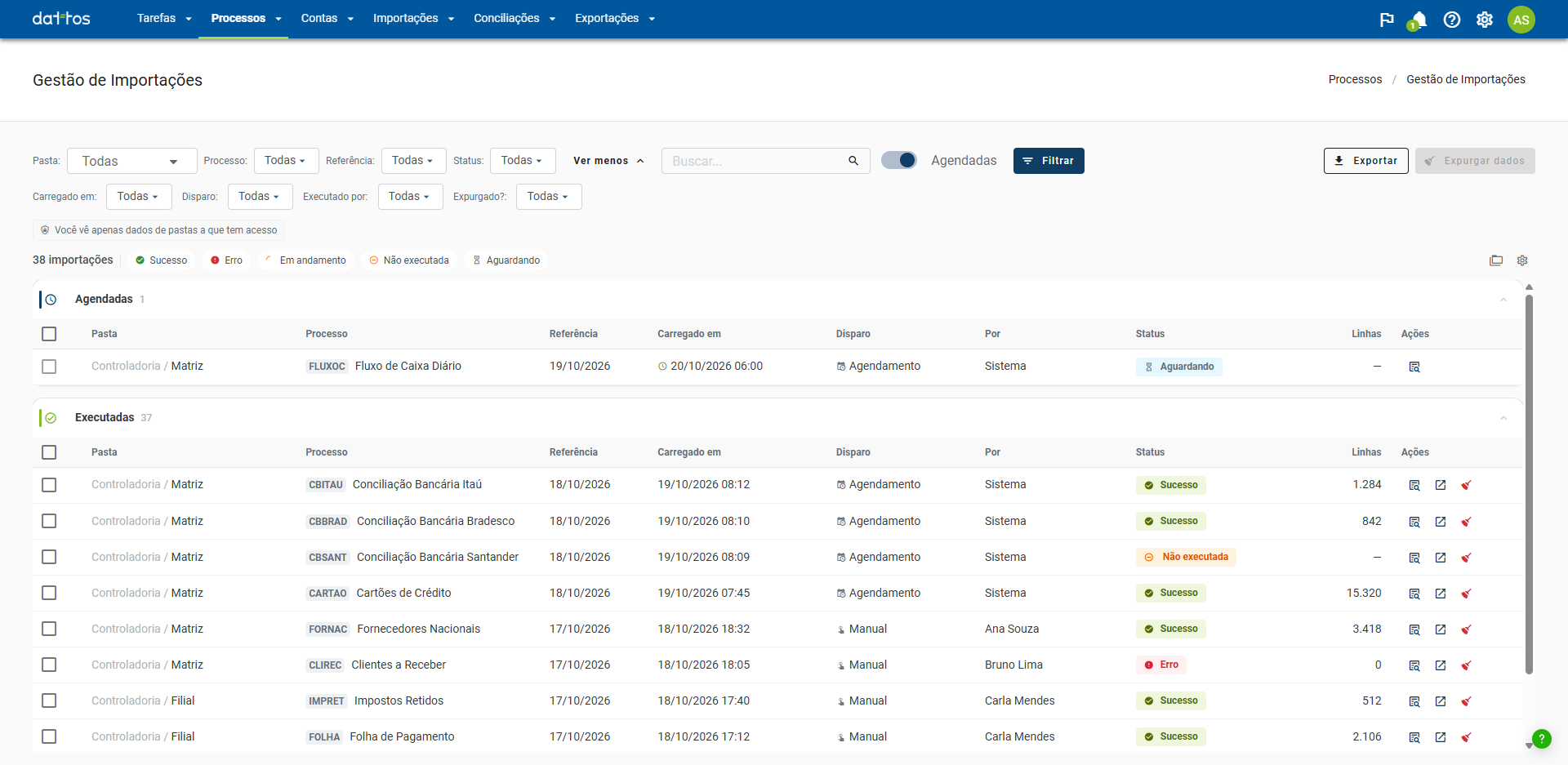
Filters
The filter bar includes:
Folder: starts with All.
Process: choose by the process name or code without having to enter the folder.
Reference: the load's reference date.
Status: Success, Error, In progress, Not run, and Waiting.
Search: searches for text in the list.
The Show more button opens a second row of filters: Loaded on, Trigger, Run by, and Purged?. To close this row, click Show less.
After selecting the filters, click Filter to apply them.
Just below the bar, the summary row shows how many imports are in the current view and shortcuts for each status: click Success, Error, In progress, Not run, or Waiting to see only those loads.
What will run: with the Scheduled toggle on, the screen also shows scheduled runs that have not happened yet, with Waiting status and the expected time in the Loaded on column. This way, the same screen shows both what has already run and what is in the queue.
The table
The list is divided into two collapsible sections:
Scheduled: runs that have not happened yet, triggered by the System.
Executed: loads that have already run or are currently running.
Each section shows how many loads it contains. For each load, the table includes:
Folder: the folder path.
Process: the process code and name.
Reference: the load's reference date.
Loaded on: when the load was performed. For a load in progress, it shows how long ago it started.
Trigger: how the load was started, such as Manual or Schedule.
By: who ran it, or System for automatic runs.
Status and Rows.
In each row's actions, you can:
View details: opens the list of runs for that load, with the date, trigger, who ran it, status, duration, and rows.
Go to analysis: opens the process results.
Purge this data: removes the import from that row. See Data purge.
A scheduled run has only the View details action because nothing has been loaded yet.
In the corner of the screen are Export, which exports the list, and Purge data, for batch purging the selected loads.
Organize the list
Two icons to the right of the summary row change how you view the list:
Folder view: groups imports by folder, with one section for each folder. The same button switches back to the list.
View: selects the density (Comfortable or Compact) and the optional columns: Trigger, By, Duration, Rows, Purged?, and Purge date. Folder, process, reference date, loaded on, and status are always displayed. Restore default returns to the initial configuration.
Load statuses
Success: the load completed.
Error: the load failed. Click the status to view the message and, if the problem continues after running it again, contact support.
In progress: the load is running.
Waiting: the run is scheduled and has not happened yet.
Not run: the run was blocked before it started.
Not run does not mean an error: the process was intentionally not run. This happens when the run is blocked by the approval flow, when a required source file is missing during automatic triggering, or when a run with the reference date in the file is rejected, for example because it contains more dates than the limit. The reason is recorded in the row. See Source Directory.
Run with the reference date in the file
When the process takes the reference date from a column in the file, each date becomes a load, and the platform opens this screen immediately after the run, filtered to it. A notice above the list tracks the run:
In progress: "The run is in progress. Dates appear here as they are imported."
When finished with dates left out: the notice summarizes what was not included, such as dates rejected because they were not business days in the calendar, rows ignored because of a missing or invalid date, and dates not run because they were already in the Approval Flow.
No dates imported: the notice shows the reason, such as a file containing more dates than the run limit.
Click View all to clear the filter and return to the full list.