

Activities on the analysis screen
Each reference date in a process can have an activity linked to it: a Process-type task, which also appears on the Task Board. On the Turbo AI process analysis screen, you work with this activity without leaving the data, using an icon menu on the left. This is where the closing record is kept: the explanatory note, evidence, dependencies, and the conversation about the date.
The menu on the left
The menu has four activity icons and, in reconciliation views, a separate fifth icon:
Note: the explanatory note for the date, with up to 1,000 characters. There is one note per date, recording why a number is what it is.
Attachments: evidence files. Drag and drop or select several at once. Supported formats include PDF, images, spreadsheets, CSV, XML, OFX, and bank return files.
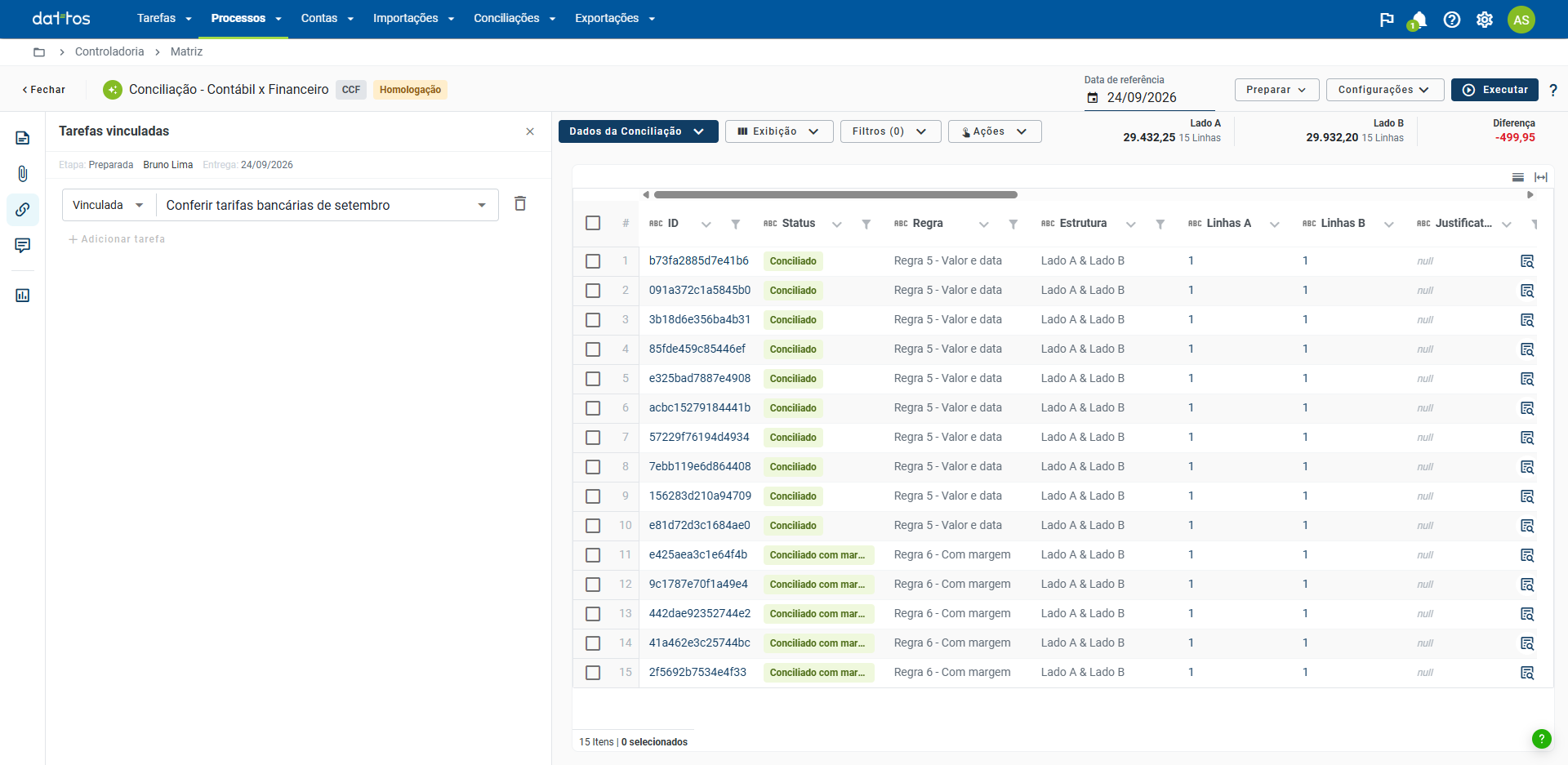
Linked tasks: links the activity to other tasks that already exist.
Comments: an informal space to discuss the analysis. Each comment can have an attachment.
Statistics: appears only in reconciliation views. It shows each reconciliation status with its value and the number of rows, and each status has a key that filters the table.
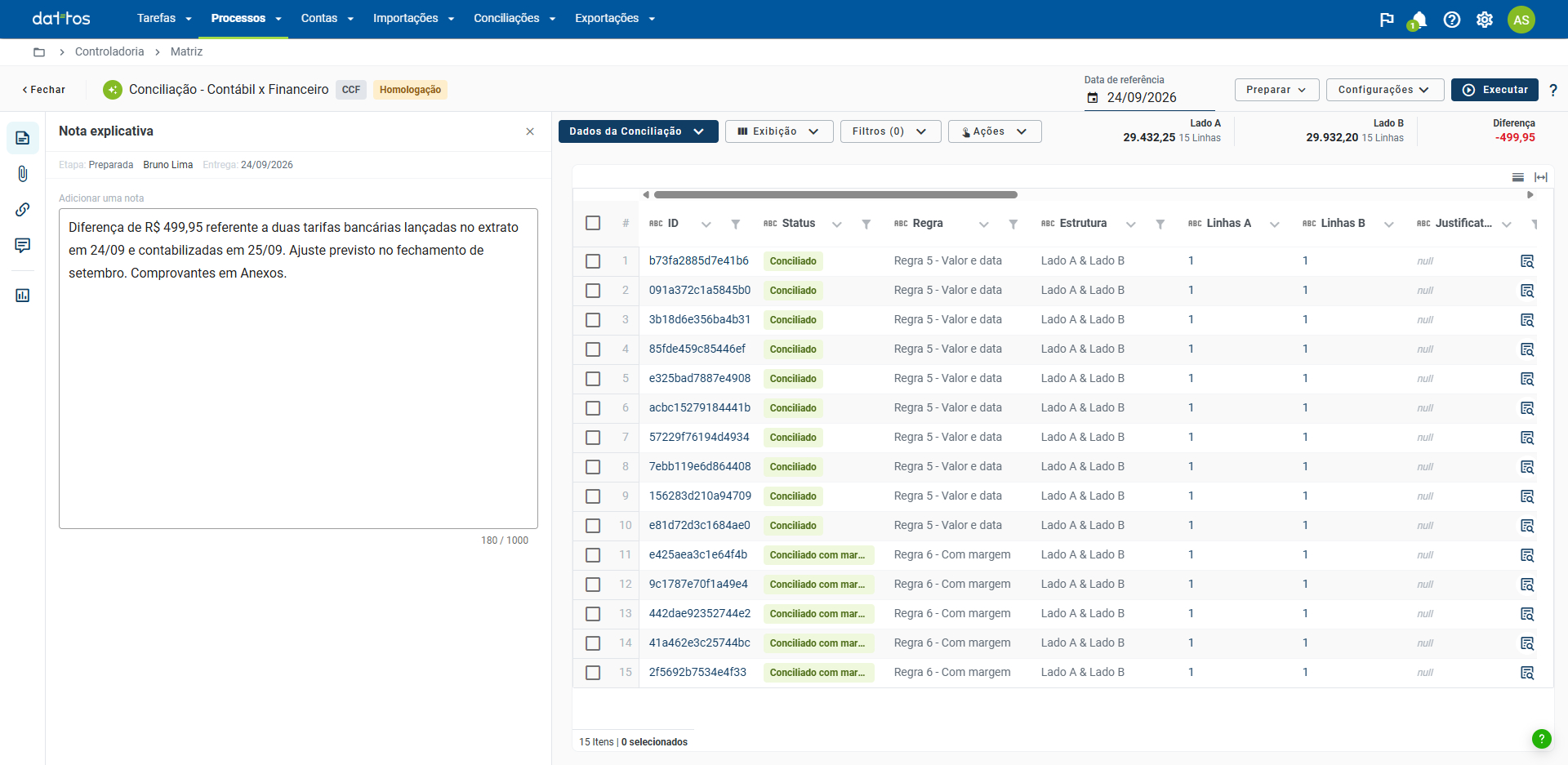
Click an icon to open its panel between the menu and the data. To close it, click the icon again, click the X, or press Esc. You can drag the panel's edge to make it wider or narrower.
Before the content, the activity panels show the Stage of the approval flow that the date is in, the activity name, and the Delivery deadline.
Linking tasks
In the Linked tasks panel, click Add task to link the activity to a task that already exists. Choose the link type and the task:
Linked;
Start is blocked by;
Blocks start;
Completion is blocked by;
Blocks completion.
These are the same dependency types as in the Tasks module. Add task does not create a new task.
The activity on the Task Board
The activity is a Process-type task. It appears on the Task Board and in the module list, like the others, and follows the date's approval flow. The note, attachments, links, and comments belong to the reference date: you see the same records in any process view for that date.
After preparation or approval: when the date advances in the approval flow, the note can no longer be edited and attachments can no longer be deleted.
When the menu does not appear
The cause is usually the date, not the permission:
Date without execution: the menu does not appear.
Date without a linked activity: the four activity icons disappear. In reconciliation, only Statistics remains; in tables, the entire menu disappears.
Before concluding that the feature is unavailable, check whether the date was executed and whether an activity exists for it.